![]() |
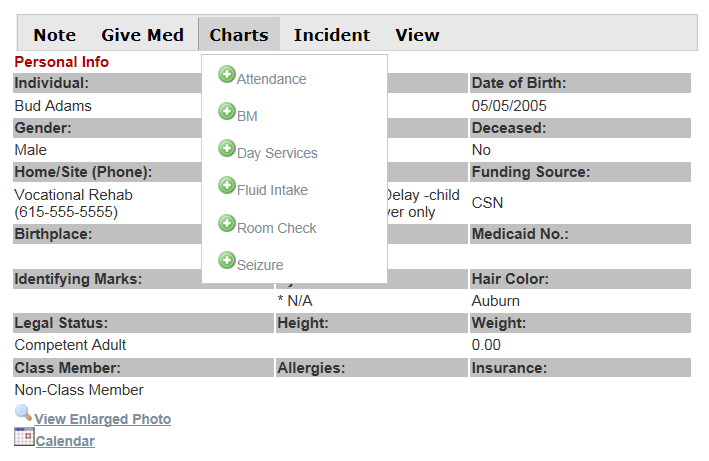
| Personal Info Page with the Note menu highlighted |
Thursday, May 29, 2014
New Menu Option
Enhancements
A few miscellaneous enhancements have been made:
From Maintenance, General Reports, Chart Reports, you may now output the various chart types as a PDF.
My Messages: Forwards now forward attachments and show the original "from" and "sent" information in the message.
My Messages: Work Site: We have had an agency testing out sending messages to anyone working at a work site and the results have been favorable, so we're adding this feature for everyone. Obviously, you have to make sure your employee records have the sites from which they can work updated for this to be useful. Those providers that use our time tracking will have these up to date.
Home Meetings: If you have had multiple positions/titles, it was displaying each title under the "Staff Positions" section. It now only displays the current position/title.
Help Documentation & Videos: From the home page, the link "Help Documentation" has been changed to "Help Documentation & Videos". It now goes to a new page that allows you to move between help manuals and videos. The videos are short and to the point and may be useful for training of new staff members. New videos are being added daily.
MAR Report: The report now shows up to 10 time slots. You have been able to enter 10 time slots for a while.
From Maintenance, General Reports, Chart Reports, you may now output the various chart types as a PDF.
My Messages: Forwards now forward attachments and show the original "from" and "sent" information in the message.
My Messages: Work Site: We have had an agency testing out sending messages to anyone working at a work site and the results have been favorable, so we're adding this feature for everyone. Obviously, you have to make sure your employee records have the sites from which they can work updated for this to be useful. Those providers that use our time tracking will have these up to date.
Home Meetings: If you have had multiple positions/titles, it was displaying each title under the "Staff Positions" section. It now only displays the current position/title.
Help Documentation & Videos: From the home page, the link "Help Documentation" has been changed to "Help Documentation & Videos". It now goes to a new page that allows you to move between help manuals and videos. The videos are short and to the point and may be useful for training of new staff members. New videos are being added daily.
MAR Report: The report now shows up to 10 time slots. You have been able to enter 10 time slots for a while.
Friday, May 23, 2014
Maintenance Requests
The view and report for Maintenance Requests have been enhanced with a couple of additional filters so that you can filter by the type of request.
Wednesday, May 21, 2014
Training Scheduling Changes
Employees --> Training Schedule
If a course has the status of "Scheduled":
If a course has any status other than "Scheduled" ("Completed", etc.):
These changes have been made to make it easier to manage and to prevent errors.
If a course has the status of "Scheduled":
- You have access to the "Edit Schedule" link.
- You do NOT have access to the "Edit Students" link.
- You CAN "Add Students" from the Add Students link.
- Changes you make in Edit Schedule affect the students' records.
If a course has any status other than "Scheduled" ("Completed", etc.):
- You do NOT have access to the "Edit Schedule" link.
- You CAN "Edit Students".
- You CANNOT "Add Students".
- Changes you make to Edit Students affect the students' records.
These changes have been made to make it easier to manage and to prevent errors.
Tuesday, May 20, 2014
Sage Accounting -- Programs
The Programs module of our Sage Accounting interface now includes a column to mark the program as "Allocated" (yes/no). Obviously, this only applies to those who interface with Sage Accounting.
Please mark the programs accordingly using the grid under Financials, Sage Accounting.
Message to Your Staff
I see that Pacesetters has already taken advantage of this new feature!
If you have access to Agency Management, go there (Maintenance, Agency Mgmt, View Agency) and scroll to the bottom.
Enter in a short message to your staff like "Our mission is to...." or maybe a time-sensitive reminder and save.
This message displays for everyone at your agency under Quick Facts on the right-hand side.
Be sure not to make it too large as that also pushes the My Messages link down the page.
In addition, we can also change the image that appears on the home page to your agency's logo.
Contact us if you have not already done so to have us add your logo.
If you have access to Agency Management, go there (Maintenance, Agency Mgmt, View Agency) and scroll to the bottom.
Enter in a short message to your staff like "Our mission is to...." or maybe a time-sensitive reminder and save.
This message displays for everyone at your agency under Quick Facts on the right-hand side.
Be sure not to make it too large as that also pushes the My Messages link down the page.
In addition, we can also change the image that appears on the home page to your agency's logo.
Contact us if you have not already done so to have us add your logo.
Tuesday, May 13, 2014
Training Specific to the Individual Scheduling (From Maintenance)
This module now immediately filters by the current month and year. Simply change the filters at the top to see older data.
My Message Forwarding
My Messages forwards now allow attachments from the original message to be forwarded.
OIG.HHS.GOV Exclusions Database Changes
For those agencies that need to track the oig.hhs.gov exclusions, the May file has been uploaded.
In addition, it now shows a partial name match and includes the system's date of birth which you can compare to the oig.hhs.gov potential match records' birth dates.
For most, this will mean that there are no true matches found in Step 2. (That's a good thing.)
Also, it will no longer let you re-run step 1 after it has been run in order to protect you from overwriting your data.
In addition, it now shows a partial name match and includes the system's date of birth which you can compare to the oig.hhs.gov potential match records' birth dates.
For most, this will mean that there are no true matches found in Step 2. (That's a good thing.)
Also, it will no longer let you re-run step 1 after it has been run in order to protect you from overwriting your data.
Thursday, May 8, 2014
Trainers can Add Students
1) A new "maximum number of students" field was added to the training tracking and now trainers can add students to a course until it reaches that student maximum. If this is left at zero (0), it has no limits to the number of students that may be added.
2) There is a new "Add Students" link to the right of each previously added course that was scheduled.
3) You won't be able to add students if the date of the course has already passed.
4) Newly added students will have their course status set to "Scheduled".
5) One more important bit of information: In order to see this link, you must have "A/E/D" permissions to "Employee: Training Sched Add Students".
2) There is a new "Add Students" link to the right of each previously added course that was scheduled.
3) You won't be able to add students if the date of the course has already passed.
4) Newly added students will have their course status set to "Scheduled".
5) One more important bit of information: In order to see this link, you must have "A/E/D" permissions to "Employee: Training Sched Add Students".
New On-line Employee Training Website
We now have a separate website for on-line training for employees. This allows you to setup courses, give tests and track the results. There is a separate charge for this service. Call us if you are interested!
Access All Inactive Employees
There is a new permission that you may need to update for your employees. It is called "Employees: Access All Inactive Employees".
The Employee Search Screen is available only if you have permissions to
Employees: Employee Mgmt.
If you do not have "Employees: Access All Inactive Employees" set to A/E/D but you have employees that are in the list of employees you supervise, you will still be able to see inactive ones that you used to supervise.
To see all inactive employees, your user group must be:
Executive Director, Agency Admin, Human Resources (Personnel)
OR you have A/E/D permissions to the new permission called: Employees: Access All Inactive Employees
You can still see inactive employees IF they are still in your list of those you supervised, even if you don't have access above.
Executive Director, Agency Admin, Human Resources (Personnel)
OR you have A/E/D permissions to the new permission called: Employees: Access All Inactive Employees
You can still see inactive employees IF they are still in your list of those you supervised, even if you don't have access above.
Exclusions Database -- HHS.Gov
The oig.hhs.gov website has an exclusions database that your employees need to be checked against. This is a requirement for Tennessee providers. Check to see if it is a requirement for your agency if you are in a different state.
The person in charge of this should have their permissions for "Exclusions:...." changed to A/E/D (add/edit/delete).
This will give them access to a new menu under Employees called Exclusions (near the bottom).
Click on "Start Here" and take note of the instructions on the screen.
Each time a new database is loaded on HHS.Gov, a new row will be shown under the Start Here link and you will need to complete the process.
The person in charge of this should have their permissions for "Exclusions:...." changed to A/E/D (add/edit/delete).
This will give them access to a new menu under Employees called Exclusions (near the bottom).
Click on "Start Here" and take note of the instructions on the screen.
Each time a new database is loaded on HHS.Gov, a new row will be shown under the Start Here link and you will need to complete the process.
New streamlined Training Specific to the Individual Procedures
From Maintenance, Training Specific, the trainer (usually the House Manager) adds a Training Specific course and assigns a staff member and the individual/service recipient to be trained.
A My Message is sent to the staff member notifying them that they will be trained for an individual.
The trainer and the staff member sit down together and the trainer clicks on the "View" link from Maintenance, Training Specific, and finds the course that was added.
Click on Train Staff.
Click on Take Course.
The Mock Fire Drill form is loaded.
Select the site/home that you're training on and fill out the drill information.
Read/review the training specific to the individual information found below the Mock Fire Drill form.
Move above the Training Specific information and have the staff member type in their user name and password to agree/validate that they understand the information.
This process adds both signatures to the documents and adds the individual to the staff member's caseload if the individual is not already on it.
It also updates the scheduled training course with "Completed" and adds two courses taken for the staff member.
A My Message is sent to the staff member notifying them that they will be trained for an individual.
The trainer and the staff member sit down together and the trainer clicks on the "View" link from Maintenance, Training Specific, and finds the course that was added.
Click on Train Staff.
Click on Take Course.
The Mock Fire Drill form is loaded.
Select the site/home that you're training on and fill out the drill information.
Read/review the training specific to the individual information found below the Mock Fire Drill form.
Move above the Training Specific information and have the staff member type in their user name and password to agree/validate that they understand the information.
This process adds both signatures to the documents and adds the individual to the staff member's caseload if the individual is not already on it.
It also updates the scheduled training course with "Completed" and adds two courses taken for the staff member.
New Encounter Type for Tennessee: SIS
The encounter type SIS has been added for Tennessee providers. We still have the ICAP score and date under demographics, but you should enter SIS information under encounters.
Wednesday, March 26, 2014
Wednesday, January 29, 2014
Medical Encounter Report Change
We have made a change to the Medical Encounter Report's medication list. All medications listed are now only meds that are active at the date/time of the encounter/appointment.
So if the appointment is six months in the future and your meds all have end dates prior to that, no meds would show on the report.
Conversely, reports in the past show the meds that were active at the time of the encounter.
In practice, the report is normally only printed just prior to the appointment, so this change may not be noticed by some.
So if the appointment is six months in the future and your meds all have end dates prior to that, no meds would show on the report.
Conversely, reports in the past show the meds that were active at the time of the encounter.
In practice, the report is normally only printed just prior to the appointment, so this change may not be noticed by some.
Wednesday, January 15, 2014
Employee -- Corrective Actions and Performance Modules
Some states already have the employee performance module and the enhanced disciplinary action module.
We are changing the Discipline module for the State of Tennessee to a Corrective Action module.
After you search for an employee, both modules appear on the list of actions.
We are changing the Discipline module for the State of Tennessee to a Corrective Action module.
After you search for an employee, both modules appear on the list of actions.
![]() |
| Corrective Action Form |
![]() |
| Performance form |
Monday, December 16, 2013
My Messages Enhancements
My Messages will have a bit of a new look and feel in the coming days. The changes below are in the final testing stages.
New features include:
Sorting by column -- click on the column header and it sorts in ascending or descending order
Searches by column -- click on the right hand side of a column to use the new filter
Go to Page....-- type in a page number at the bottom to go to a particular page
Deleting multiple messages at once -- click on the new checkbox to the left of each message and then
click on the delete button at the bottom to delete all messages checked
Bug fixed -- You should also no longer see any instances where the messages get skewed because of strange formatting within a specific message.
Compatibility -- My Messages should also work better now from devices such as iPhones, Android phones, and browsers other than Internet Explorer.
Subscribe to:
Posts (Atom)